
DHL Express (Germany): Account Configuration
For general information about how to configure a carrier in Carrier Connect, refer to our User Guide (German version).
To create a new DHL Express account in Carrier Connect, open DHL Express in Master data > Carrier configurations. In the tab Accounts click on New.
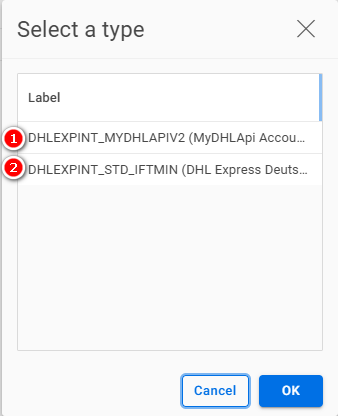
Select account type
- (1) DHLEXPINT_MYDHLAPIV2 only if you will use the value-added service Pickup Booking (DHLEXPINTPICKUP).
- (2) DHLEXPINT_STD_IFTMIN in all other cases. It's the standard account type for outbound shipments.
DHL Express account
(2) Account type: DHLEXPINT_STD_IFTMIN
| Number | Field | Comment |
|---|---|---|
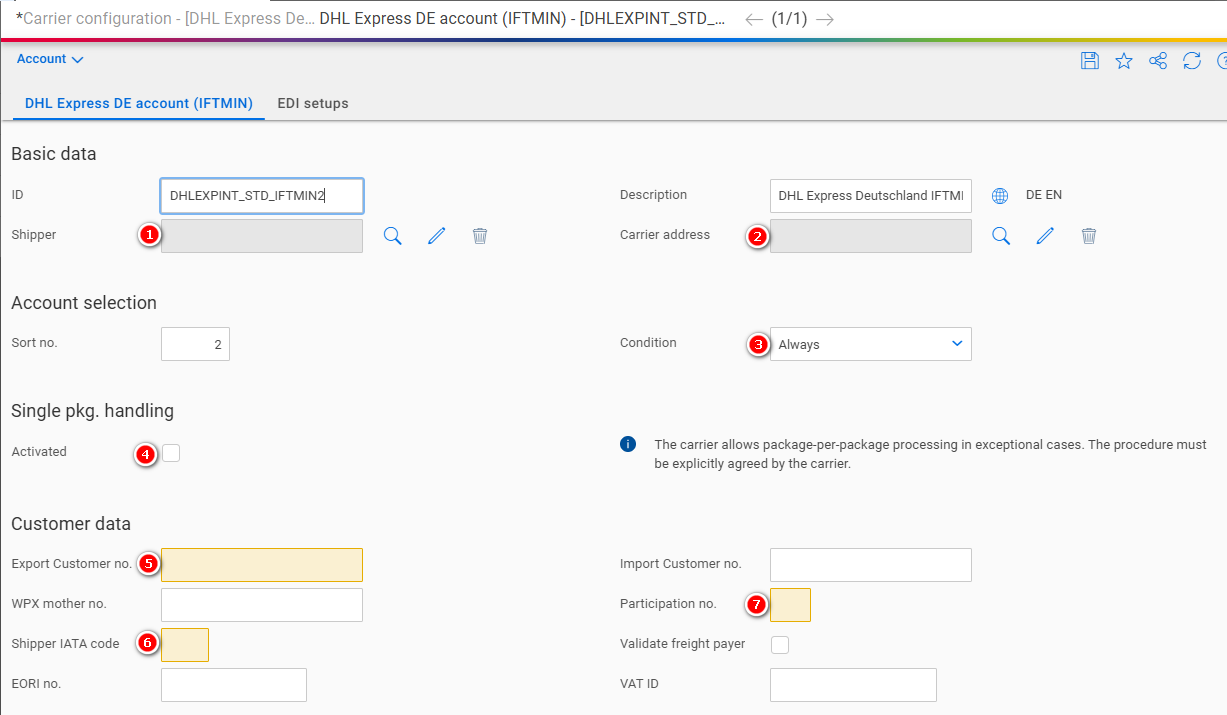
| 1 | Shipper | The address of the shipper |
| 2 | Carrier address | The address of the carrier (depot) |
| 3 | Condition | See our user guide |
| 4 | Single pkg. handling | See Single Package Handling |
| 5 | Export Customer no. | Assigned by the carrier |
| 6 | Shipper IATA code | Assigned by the carrier |
| 7 | Participation no. | Assigned by the carrier |
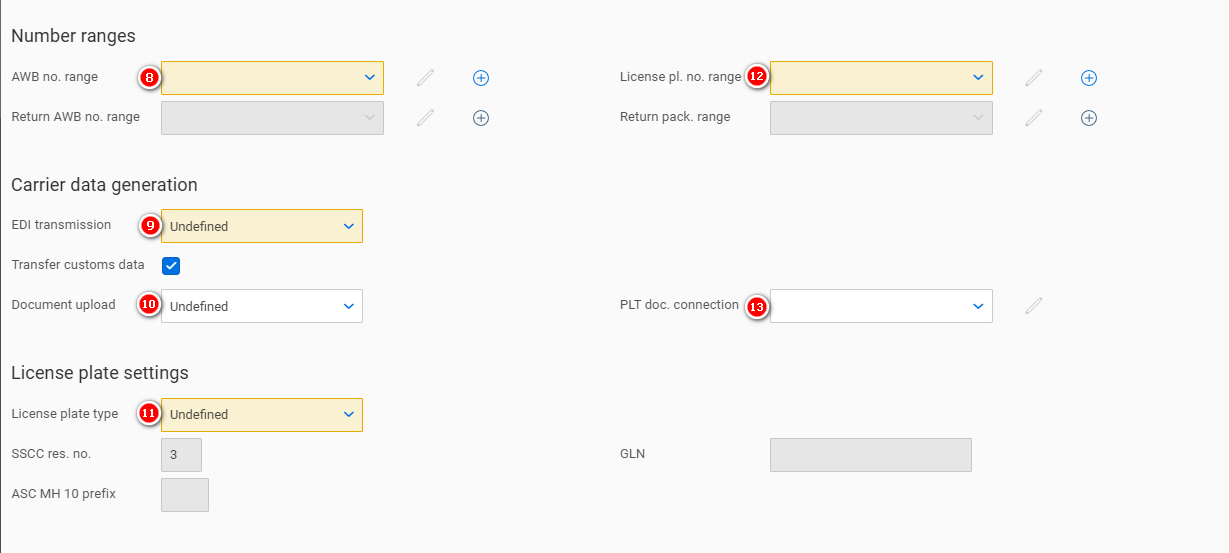
| 8 | AWB no. range | The Air Way Bill number range. See AWB no. range |
| 9 | EDI transmission | Set to Send and log. |
| 10 | Document upload | If you need to transmit documents electronically to DHL, set to Send and log. |
| 11 | License plate type | DHL calls its package number range License plate number range. Assigned by the carrier. There are two options:
|
| 12 | License pl. no. range | See License pl. no. range |
| 13 | PLT Doc. connection |
Single Package Handling

- The package number and the total number of packages are usually printed on the package label, e.g. 1 OF 2 for the first package, 2 OF 2 for the second package. Exception is the UPS service "Standard Package". With this service, 1 OF 1 is always printed on each package label, regardless of how many packages there are in total.
- If single package handling is activated, 1 OF , 2 OF , etc. will be printed on the label for all services except "UPS Standard Package".
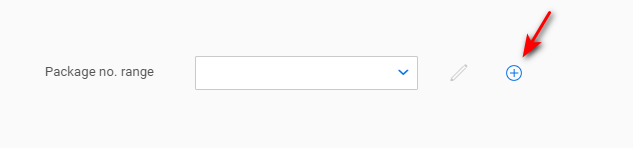
Package number range
For general information about how to configure number ranges refer to Entering new number ranges and receiving notifications (German version) in our Carrier Connect user guide.
Click on the + to create a new number range:
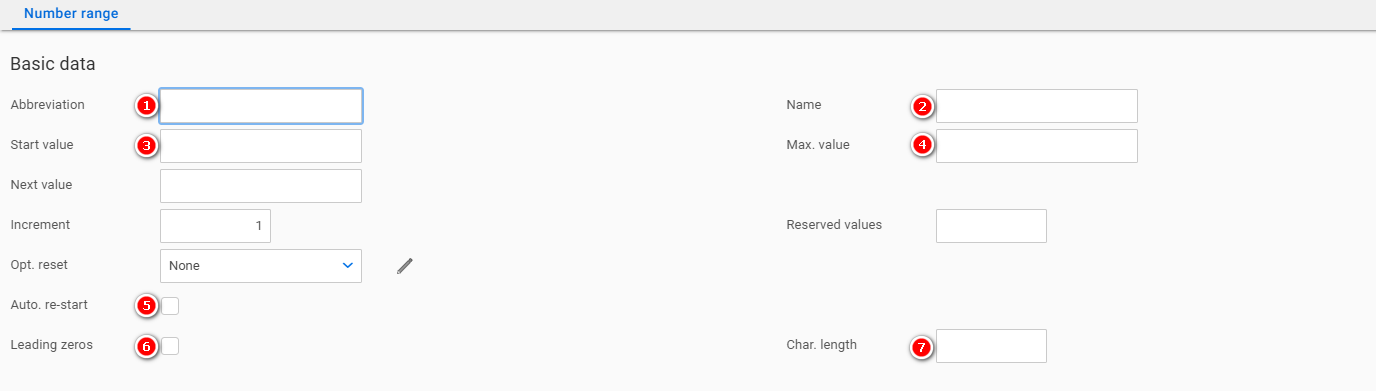
AWB no. range
| Number | Field | Comment |
|---|---|---|
| 1 | Abbreviation | Choose a descriptive abbreviation. E.g. DHLEXP_AWB |
| 2 | Name | Choose a descriptive name. E.g. DHL Express AWB number range |
| 3 | Start value | Assigned by the carrier |
| 4 | Max. value | Assigned by the carrier |
| 5 | Auto. re-start | Activated |
| 6 | Leading zeros | Deactivated |
| 7 | Char. length | 9 |
License plate type
ASC MH 10

| Number | Field | Comment |
|---|---|---|
| 1 | ASC MH 10 | Assigned by the carrier |
ASC MH 10: License pl. no. range
| Number | Field | Comment |
|---|---|---|
| 1 | Abbreviation | Choose a descriptive abbreviation. E.g. DHLEXP_LP |
| 2 | Name | Choose a descriptive name. E.g. DHL Express license plate number range |
| 3 | Start value | Assigned by the carrier |
| 4 | Max. value | Assigned by the carrier |
| 5 | Auto. re-start | Activated |
| 6 | Leading zeros | Activated |
| 7 | Char. length | 18 |
GS1-128 (SSCC)

| Number | Field | Comment |
|---|---|---|
| 1 | GLN | The GS1 base number of your company (7-9 digits) |
GS1-128 (SSCC): License pl. no. range
| Number | Field | Comment |
|---|---|---|
| 1 | Abbreviation | Choose a descriptive abbreviation. E.g. DHLEXP_LP |
| 2 | Name | Choose a descriptive name. E.g. DHL Freight license plate number range |
| 3 | Start value | Assigned by the carrier |
| 4 | Max. value | 999999999 |
| 5 | Auto. re-start | Activated |
| 6 | Leading zeros | Activated |
| 7 | Char. length | Between 7 and 9, depending on the length of your GS1 base number (in total both numbers must equal 16) |
Return services
You will need a second customer number and a second package number range, if you are using one of the DHL Express return services:
- Data staging – return (enclosed) (DHLEXPINTRETURN)
- Data staging - Return (on demand) (DHLEXPINTRETURNOD)
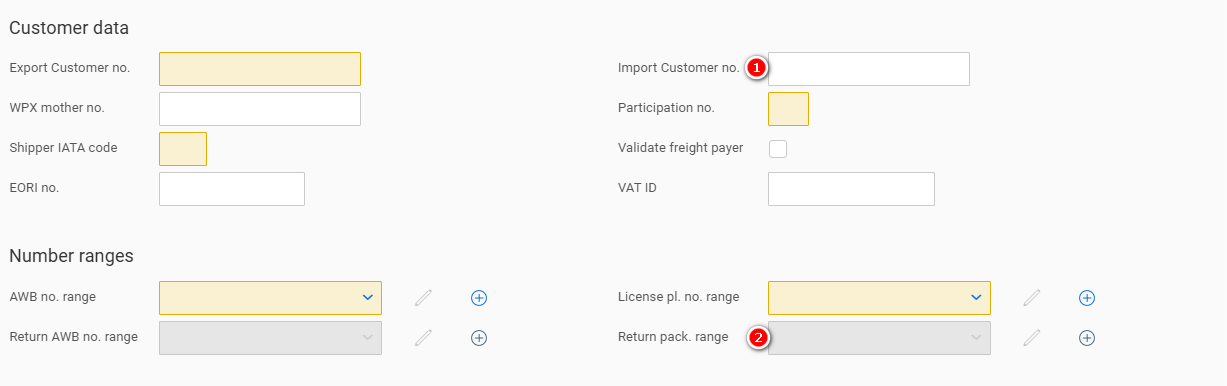
| Number | Field | Comment |
|---|---|---|
| 1 | Import Customer no. | Assigned by the carrier |
| 2 | Return pack. range | A second package number range assigned by the carrier. It's configured like the package number range. |
EDI setups
In this section the EDI upload parameters are configured.
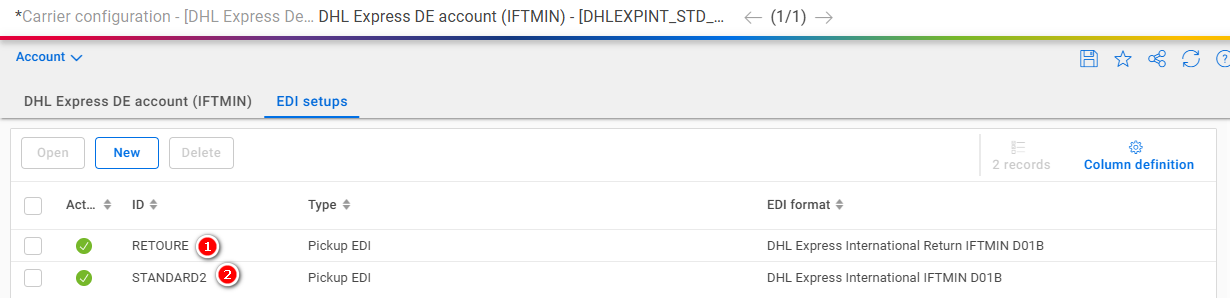
| Number | ID | Comment |
|---|---|---|
| 1 | RETOURE | Only needed if you use one of the value-added services: Data staging – return (enclosed) (DHLEXPINTRETURN) or Data staging - Return (on demand) (DHLEXPINTRETURNOD). Also see Return services |
| 2 | STANDARD2 | This will send the standard EDI (when closing the pickup) |
Select the EDI ID you want to configure and click on Open.
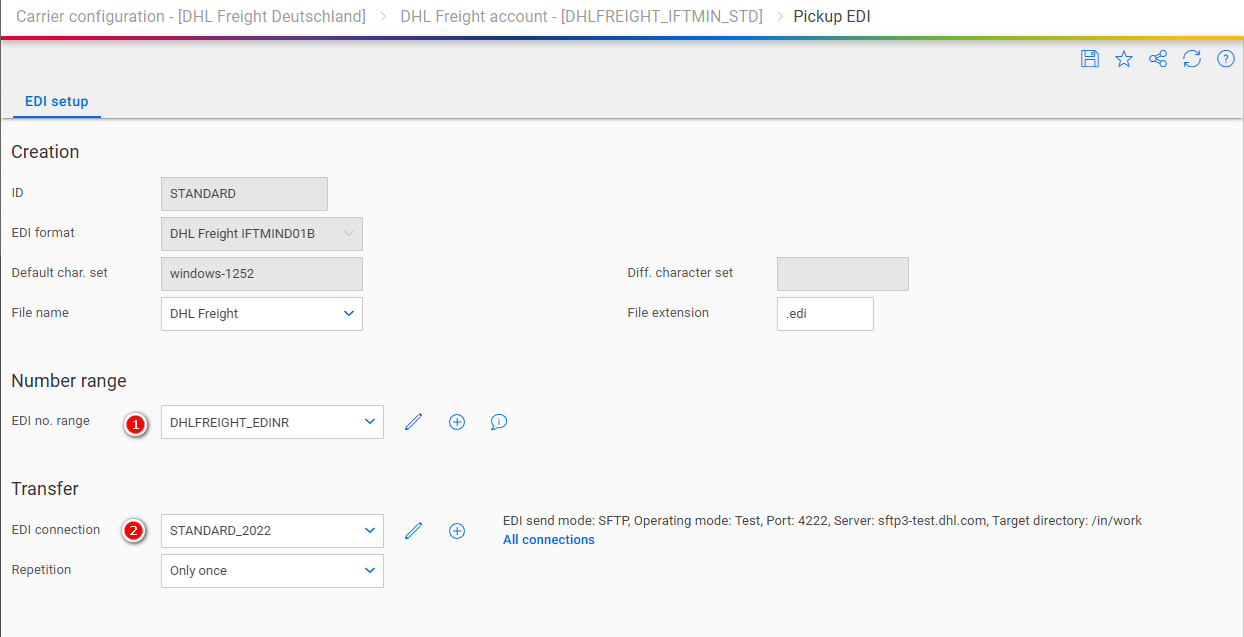
| Number | Field | Comment |
|---|---|---|
| 1 | EDI no. range | The EDI number range. See EDI number range |
| 2 | EDI connection | The SFTP-Parameters used for the EDI upload. See |
EDI number range
For general information about how to configure number ranges refer to Entering new number ranges and receiving notifications (German version) in our Carrier Connect user guide.
Click on the + to create a new number range:

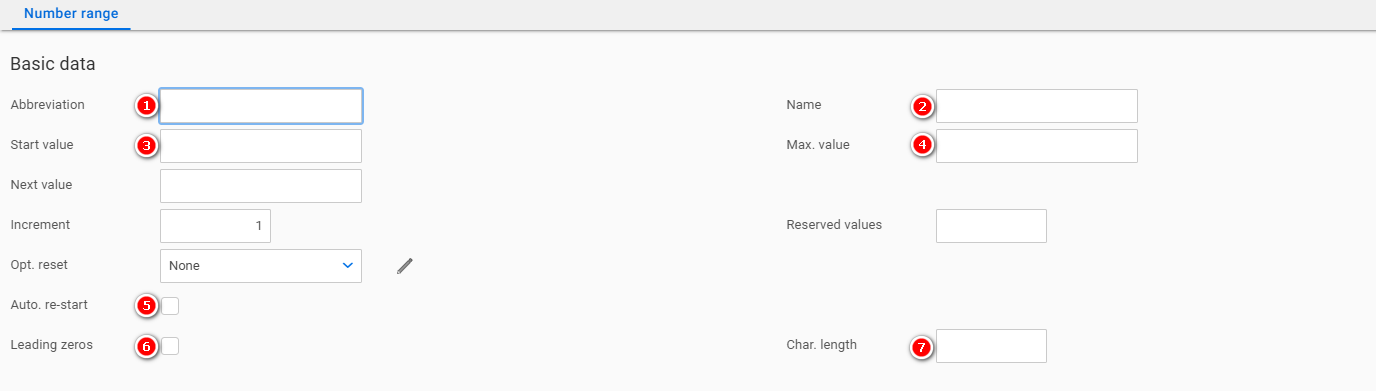
| Number | Field | Comment |
|---|---|---|
| 1 | Abbreviation | Choose a descriptive abbreviation. E.g. DHLEXP_EDI |
| 2 | Name | Choose a descriptive name. E.g. DHL Express EDI number range |
| 3 | Start value | 1 |
| 4 | Max. value | 999 |
| 5 | Auto. re-start | Activated |
| 6 | Leading zeros | Activated |
| 7 | Char. length | 3 |
Updated 10 months ago