
DHL Paket (Germany): Account Configuration
For general information about how to configure a carrier in Carrier Connect, refer to our User Guide (German version).
To create a new DHL Paket Deutschland account in Carrier Connect, open DHL Paket Deutschland in Master data > Carrier configurations. In the tab Accounts click on New.
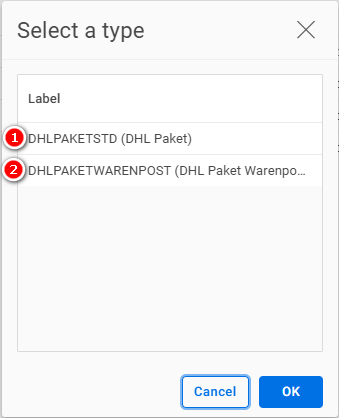
Select account type
- (1) DHLPAKETSTD (DHL Paket) in all other cases. It's the standard account type for outbound shipments.
- (2) DHLPAKETWARENPOST (DHL Paket Warenpost) only if you will use the value-added service DHL small parcel (DHL_STD_WPNATIONAL).
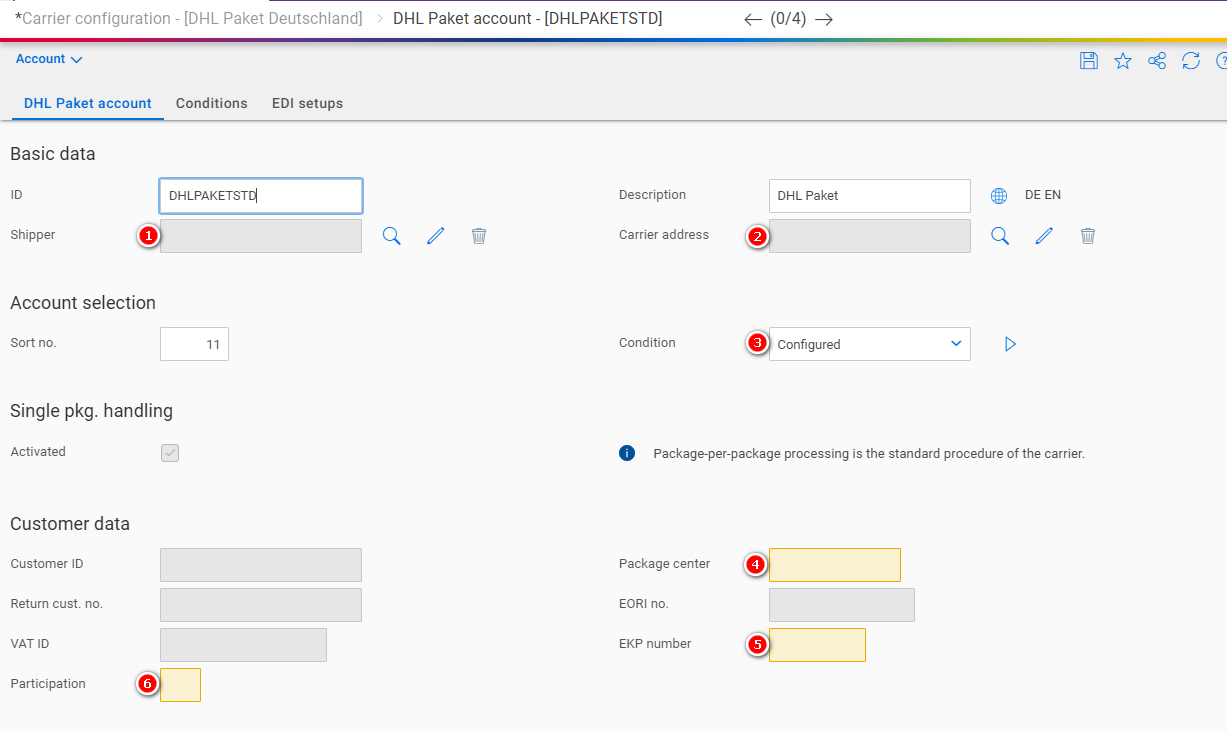
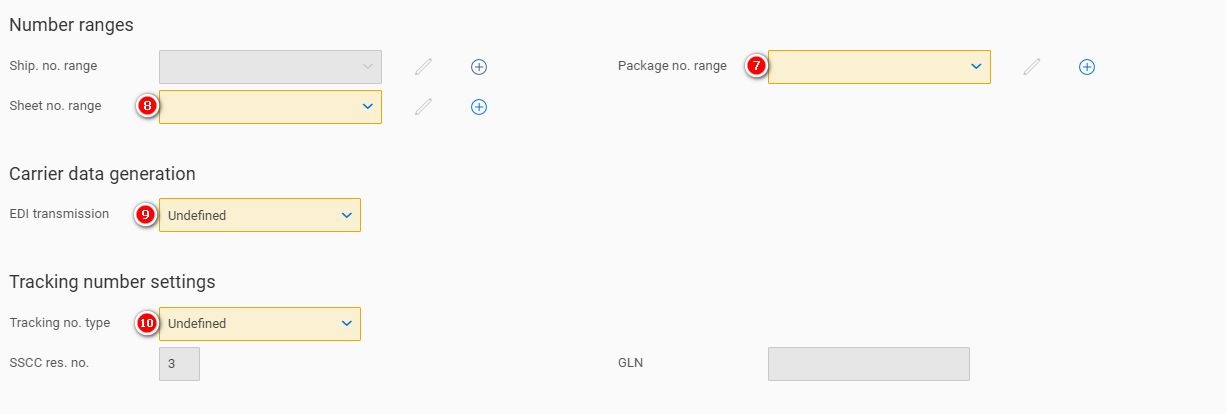
DHL Paket account
| Number | Field | Comment |
|---|---|---|
| 1 | Shipper | The address of the shipper |
| 2 | Carrier address | The address of the carrier (depot) |
| 3 | Condition | See our user guide |
| 4 | Package center | Assigned by the carrier |
| 5 | EKP number | Assigned by the carrier |
| 6 | Participation | Assigned by the carrier |
| 7 | Package no. range | See Package number range |
| 8 | Sheet no. range | See Package number range |
| 9 | EDI transmission | Set to Send and log |
| 10 | Tracking no. type | Assigned by the carrier. There are two options:
|
Package number range
For general information about how to configure number ranges refer to Entering new number ranges and receiving notifications (German version) in our Carrier Connect user guide.
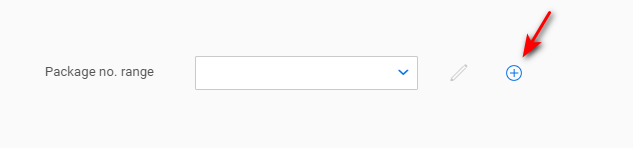
Click on the + to create a new number range:
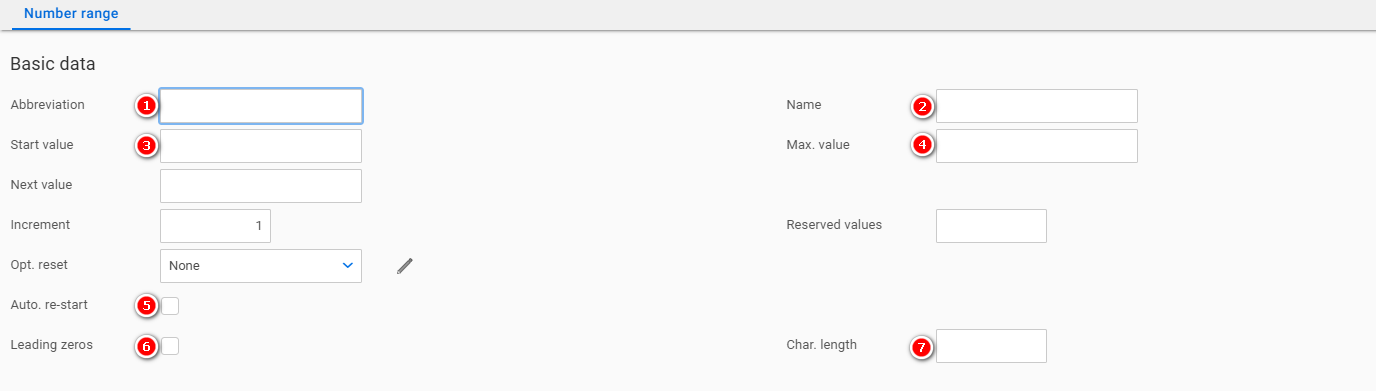
Package number range
| Number | Field | Comment |
|---|---|---|
| 1 | Abbreviation | Choose a descriptive abbreviation. E.g. DHLPAKET_PCK |
| 2 | Name | Choose a descriptive name. E.g. DHL Paket package number range |
| 3 | Start value | Assigned by the carrier |
| 4 | Max. value | Assigned by the carrier |
| 5 | Auto. re-start | Activated |
| 6 | Leading zeros | Activated |
| 7 | Char. length | 3-8 |
Sheet number range
| Number | Field | Comment |
|---|---|---|
| 1 | Abbreviation | Choose a descriptive abbreviation. E.g. DHLPAKET_BLATT |
| 2 | Name | Choose a descriptive name. E.g. DHL Paket Blatt number range |
| 3 | Start value | 1 |
| 4 | Max. value | 999 |
| 5 | Auto. re-start | Activated |
| 6 | Leading zeros | Activated |
| 7 | Char. length | 3 |
Tracking no. type
Identcode
No further data required.
GS1 EAN 128 Licenseplate

| Number | Field | Comment |
|---|---|---|
| 1 | GLN | The GS1 base number of your company (7-9 digits) |
EDI setups
In this section the EDI upload parameters are configured.
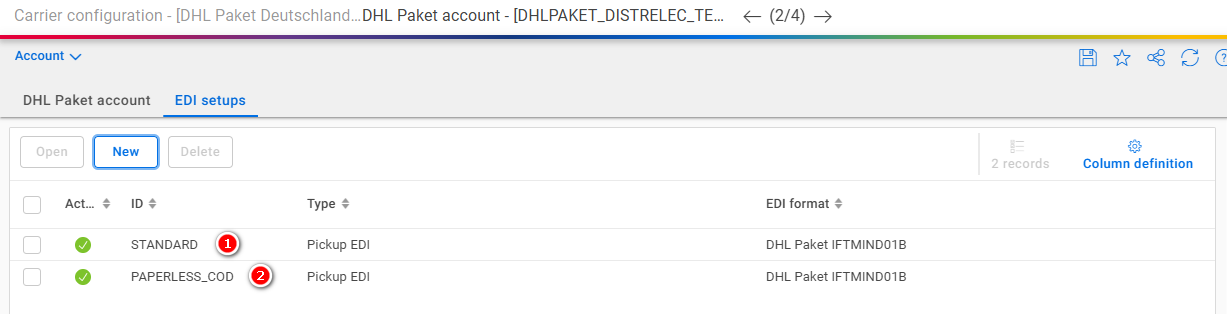
| Number | ID | Comment |
|---|---|---|
| 1 | STANDARD | This will send the standard EDI (when closing the pickup) |
| 2 | PAPERLESS_COD | Only needed if you use the value added service Paperless cash on delivery (DHLPAKETPLCOD) |
Select the EDI ID you want to configure and click on Open.
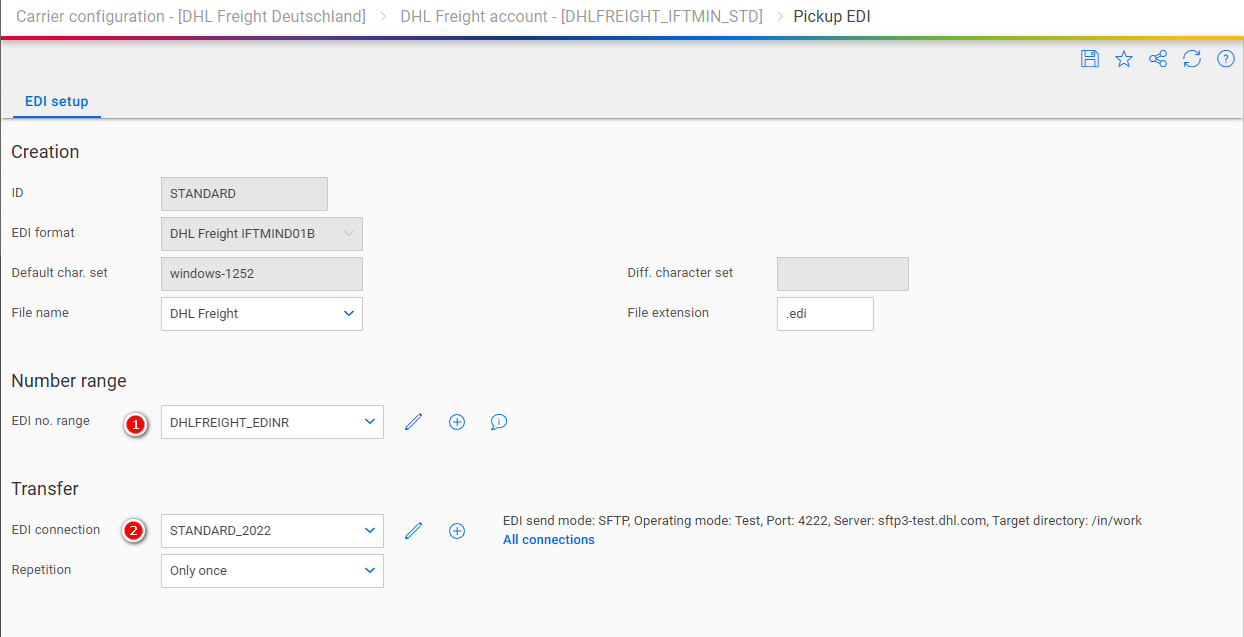
| Number | Field | Comment |
|---|---|---|
| 1 | EDI no. range | The EDI number range. See EDI number range |
| 2 | EDI connection | Select STANDARD_2025 |
EDI number range
For general information about how to configure number ranges refer to Entering new number ranges and receiving notifications (German version) in our Carrier Connect user guide.
Click on the + to create a new number range:

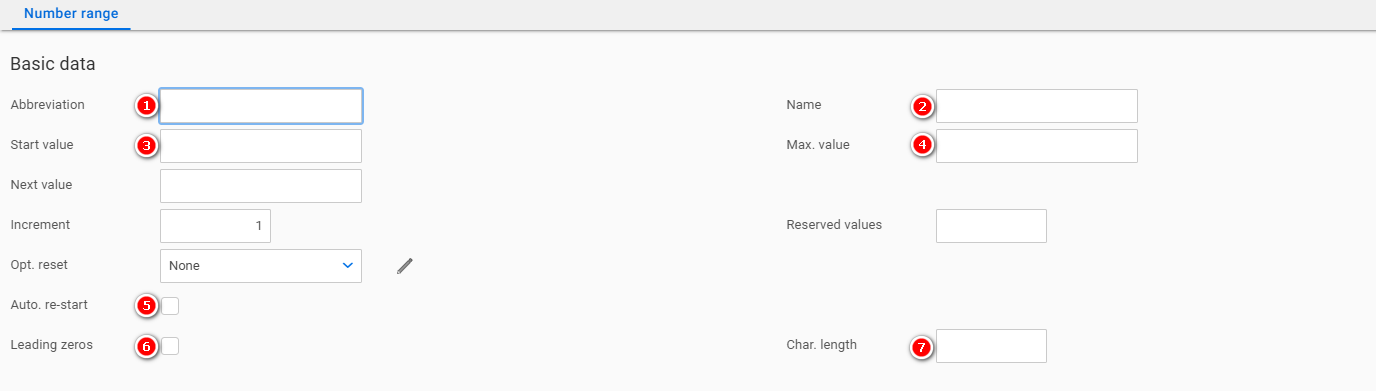
| Number | Field | Comment |
|---|---|---|
| 1 | Abbreviation | Choose a descriptive abbreviation. E.g. DHLPAKET_EDI |
| 2 | Name | Choose a descriptive name. E.g. DHL Paket EDI number range |
| 3 | Start value | 1 |
| 4 | Max. value | 999 |
| 5 | Auto. re-start | Activated |
| 6 | Leading zeros | Activated |
| 7 | Char. length | 3 |
Updated 8 months ago