
Setting up your SAP environment (LCM)
Generate Enterprise Services from WSDL
To consume the Logistics Cost Management API in SAP S/4HANA or SAP ERP 6.0, you must generate one or more enterprise services. Generate one service consumer for each WSDL that you intend to use.
-
Open transaction SE80 and create a package.
-
Right-click the package and choose Create → Enterprise Services.
-
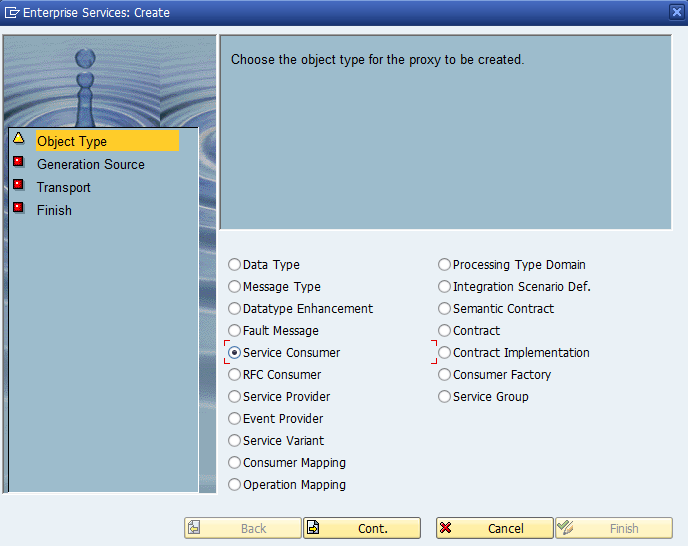
In the wizard, select Service Consumer and choose Continue.
-
Select External WSDL/Schema as the service source.
-
Select URL as the data source and choose Continue.
-
Enter the following URL: https://rz3.aeb.de/test2billing/servlet/bf/BillingBF?WSDL This WSDL represents the main API for Logistics Cost Management. Additional WSDLs are available, but this one is sufficient for the initial implementation.
-
Select the package created previously.
-
Assign a transport request.
-
Leave the Prefix field empty and choose Continue.
-
Confirm the "No prefix entered" dialog by pressing Enter, and then choose Complete.
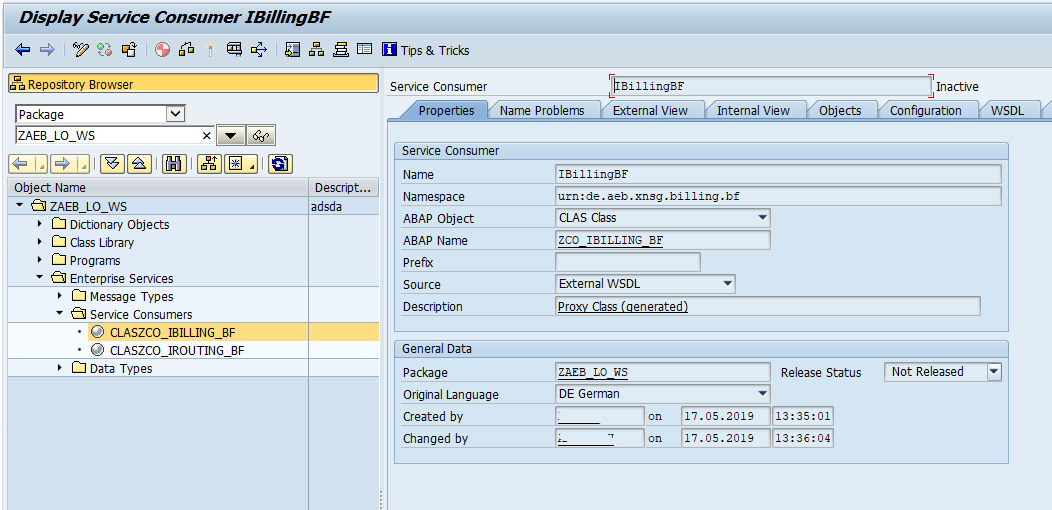
The service consumer is now generated:
Activate the Service Consumer
If the service consumer cannot be generated or activated, refer to the troubleshooting guide.
If no errors occur during generation, save the service consumer. Before activating it, however, you must adjust the proxy editor settings because the service definition contains recursive structures that are not permitted in the current context.
-
Open the service consumer.
-
Choose Utilities → Settings.
-
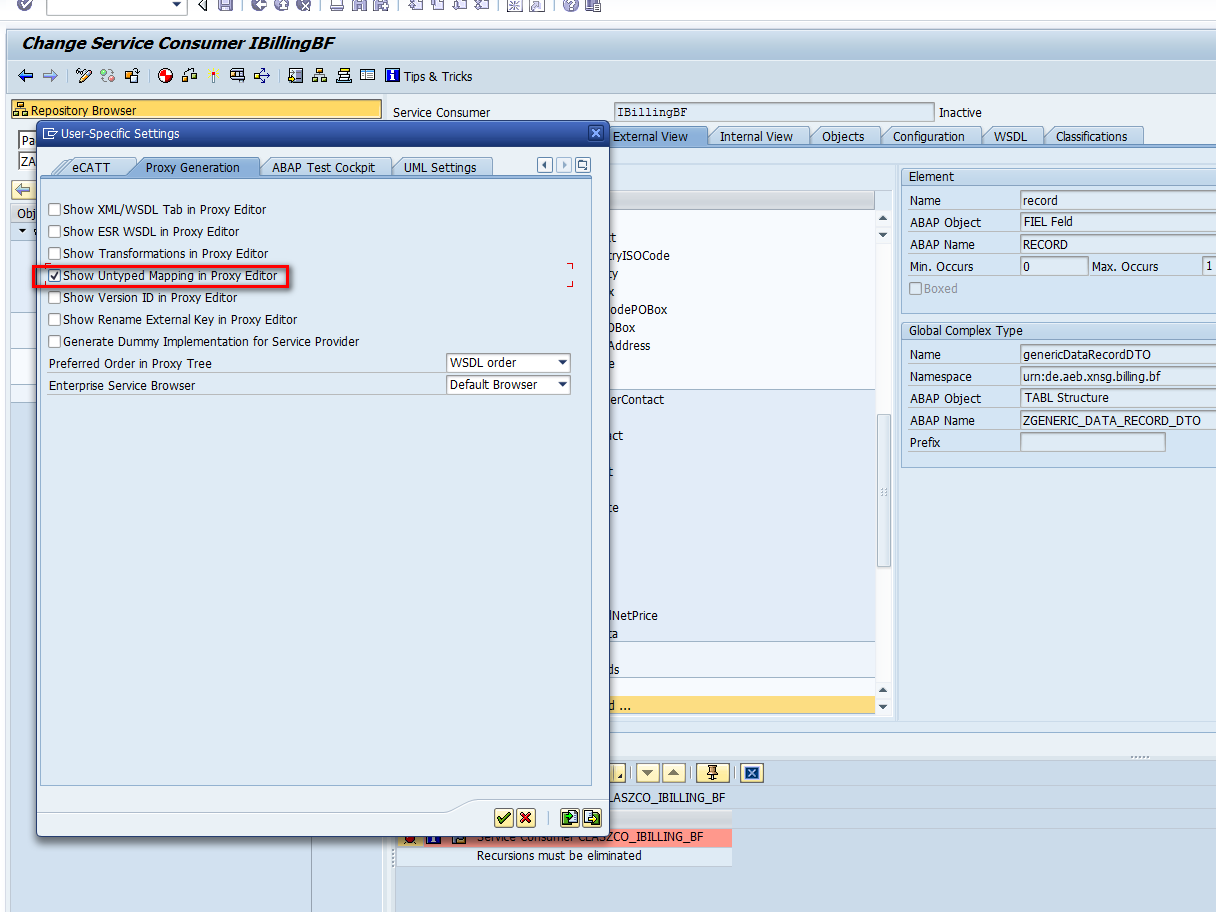
In the dialog box, open the Proxy Generation tab.
-
Select "Show Untyped Mapping" in Proxy Editor.
-
Save the settings and return to the service consumer.
-
Open the External View tab.
-
Choose the search help icon and search for "record".
-
Select the Pattern checkbox.
-
Select the record element in the results.
-
In the details area on the right, select "Untyped Mapping".
-
Save the service consumer.
You can now activate the service consumer. During activation, SAP generates the ABAP structures and classes required to consume the API.
If activation fails, refer to the troubleshooting guide.
Create an executable program
The service consumer is now available for implementation. To test the API connection and demonstrate the required components, create an executable ABAP program and insert the provided code snippet.
DATA:
  billing_bf             TYPE REF TO zco_ibilling_bf,
  output_data            TYPE zcreate_service_items_respons1,
  input_data             TYPE zcreate_service_items1,
  system_fault_exception TYPE REF TO cx_ai_system_fault.

TRY.
    CREATE OBJECT billing_bf EXPORTING logical_port_name = 'ZBILLING_BF_TEST2'.
  CATCH cx_ai_system_fault INTO system_fault_exception.
    WRITE 'Could not instantiate the billingBF '.
    WRITE system_fault_exception->get_text( ).
    RETURN.
ENDTRY.


input_data-parameters-request-base-client_ident_code = 'APITEST'.
input_data-parameters-request-base-client_system_id = 'T23_400'.
input_data-parameters-request-base-user_name = sy-uname.


TRY.
    billing_bf->create_service_items( EXPORTING input = input_data
                                      IMPORTING output = output_data ).
  CATCH cx_ai_system_fault INTO system_fault_exception.
    WRITE 'Error when calling create service item '.
    WRITE system_fault_exception->get_text( ).
ENDTRY.
Activate and execute the report. The following error is expected:
Could not instantiate the billingBF.
The error message indicates that no logical port named ZBILLING_BF_TEST2 has been configured for the proxy class ZCO_IBILLING_BF.
The logical port configuration connects the service consumer with the endpoint and the authentication data. The next step is therefore to create a logical port for the proxy class.
Create a logical port
- Start transaction SOAMANAGER. The transaction opens in an external browser window.
- Remain on the Service Administration tab.
- Open Web Service Configuration.
- Search for the proxy class ZCO_IBILLING_BF by entering it in the Object Name filter field.
- Choose Search.
- Select the entry for ZCO_IBILLING_BF.
- Open the Configurations tab.
- Choose Create and select Manual Configuration.
- A wizard opens to guide you through the logical port configuration.
Step 1: Logical Port
- Enter ZBILLING_BF_TEST2 as the logical port name. This name must correspond to the name specified in the ABAP program.
- Enter an appropriate description.
- Leave Logical Port is Default unselected.
- Choose Next.
Step 2: Consumer Security
- Select User ID / Password.
- Enter the user name and corresponding password: see Authentication for more details.
- Choose Next.
Step 3: HTTP Settings
- Select "Complete URL"
- Enter the following URL: https://rz3.aeb.de/test2billing/servlet/bf/BillingBF
- Choose Next.
Step 4: SOAP Protocol
- Set Message ID Protocol to "Suppress ID Transfer".
- Set Data transfer scope to "Minimal data transfer"
- Set Transfer protocol to "Transfer via HTTP header"
Proceed through the next two steps without changing the default settings. Finally, complete the wizard to save the logical port configuration.
Importing certificates for HTTPS connections
Follow the instructions at https://docs.aeb.com/doc/cm-387110283-860970507-en-US/t-860970507-391691019-en-US
Updated 21 days ago
What’s Next
Problems with something in this chapter -> choose trouble shooting guide
Otherwise start with your first service item